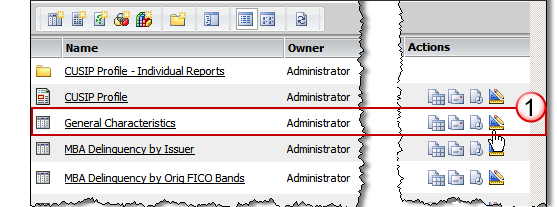
Access Design Mode for a report.
You may use an existing report or select the option to create a new report. When creating a new report, the report template will be blank.
For this example, we will customize the existing General Characteristics report in Shared Reports.



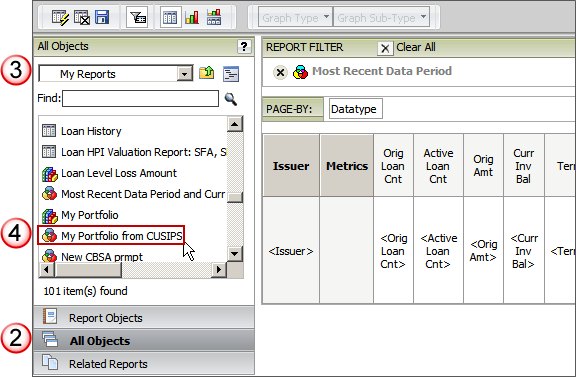
Select the All Objects option from the Report Editor.
Select the location of your Portfolio filters (My Reports).
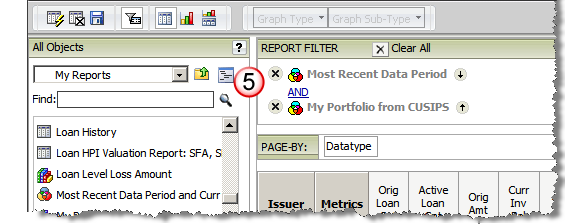
Search for and select the Portfolio filter you wish to add move it to the Report Filter panel/

Once the filter object is added to the Report Filter panel click the Save option to save the report to My Reports.
When the report is executed, the output will only include those deals that are associated with that Portfolio filter.